

Introduction to IPTV and Firestick
Internet Protocol Television (IPTV) represents a significant shift in how television content is delivered to consumers, utilizing the internet rather than traditional terrestrial, satellite, or cable formats. Unlike conventional cable services, which rely on physical infrastructure, IPTV leverages internet connectivity to transmit television programming, offering an array of advantages such as on-demand content, a greater variety of channels, and the potential for higher-definition video quality.
This modern delivery method enables users to stream their favorite shows and movies anytime, anywhere, provided they have a sufficient internet connection. IPTV services typically come in the form of subscriptions, granting access to bundled channels or pay-per-view content. This flexibility allows users to customize their viewing experiences to align with personal preferences, opting for packages that best suit their entertainment needs.
The Amazon Firestick has emerged as a favored device for accessing IPTV services, due to its user-friendly interface, portability, and affordability. The Firestick plugs directly into a television’s HDMI port, allowing seamless streaming of content from various platforms, including IPTV apps. Its compatibility with numerous applications makes it a versatile solution for anyone looking to enhance their home entertainment system.
Moreover, Firestick supports voice commands via Alexa, enabling users to search for content effortlessly. As a preferred choice among consumers, integrating IPTV with the Firestick provides an efficient way to experience a plethora of channels and services without the constraints associated with traditional cable subscriptions. This combination offers an innovative solution for modern viewing habits, accommodating the increasing demand for flexibility and access to diverse content on various devices.
Step-by-Step Guide to Installing IPTV on Firestick
Installing IPTV on your Amazon Firestick is a straightforward process that allows you to enjoy a myriad of channels and content seamlessly. To initiate the installation, begin by preparing your Firestick. First, navigate to the home screen and select the “Settings” option. From there, choose “My Fire TV” and access the “Developer options” menu. Ensure that both “Apps from Unknown Sources” and “ADB Debugging” are enabled. This step is crucial as it allows the installation of applications that are not available in the official Amazon App Store.
Next, return to the home screen and go to the “Search” function to find an app called “Downloader.” This application is essential for downloading third-party applications, including your preferred IPTV app. Once found, download and install the “Downloader” app. After installation, launch the app, and you will be prompted to enter a URL.
Input the URL for the IPTV application you wish to install. This URL can typically be found on the IPTV provider’s website. After entering the URL, the Downloader app will begin the downloading process. Wait for the download to complete, and then install the application when prompted.
After the IPTV application is successfully installed, it is advisable to reconfigure your Firestick’s settings to ensure optimal performance. This includes clearing any unnecessary cached data from apps and ensuring you have a stable internet connection. In cases where issues arise during installation, common troubleshooting tips include restarting your Firestick or ensuring the URL entered was correct. If access issues persist, confirming your subscription to the IPTV service or checking with their customer support may be beneficial.
Installing IPTV on Alternative Devices
With the increasing popularity of IPTV services, many users are seeking ways to enjoy their favorite content on various devices. In this section, we will detail the installation process for IPTV on Android Boxes, Smart TVs, and MAG Boxes, providing clear instructions for each device. Whether you are using an Android Box or a Smart TV, you can access a wide range of IPTV services, enhancing your viewing experience.
1. Android Boxes: Installing IPTV on an Android Box is relatively straightforward. First, ensure your device is connected to the internet. Go to the Google Play Store and search for an IPTV application, like IPTV Smarters or Perfect Player. Once you find your preferred app, click ‘Install’. After installation, open the app and enter the M3U URL or the Xtream Codes provided by your IPTV service provider. Follow the prompts to configure the app according to your preferences. Make sure that you have an active subscription to stream content.
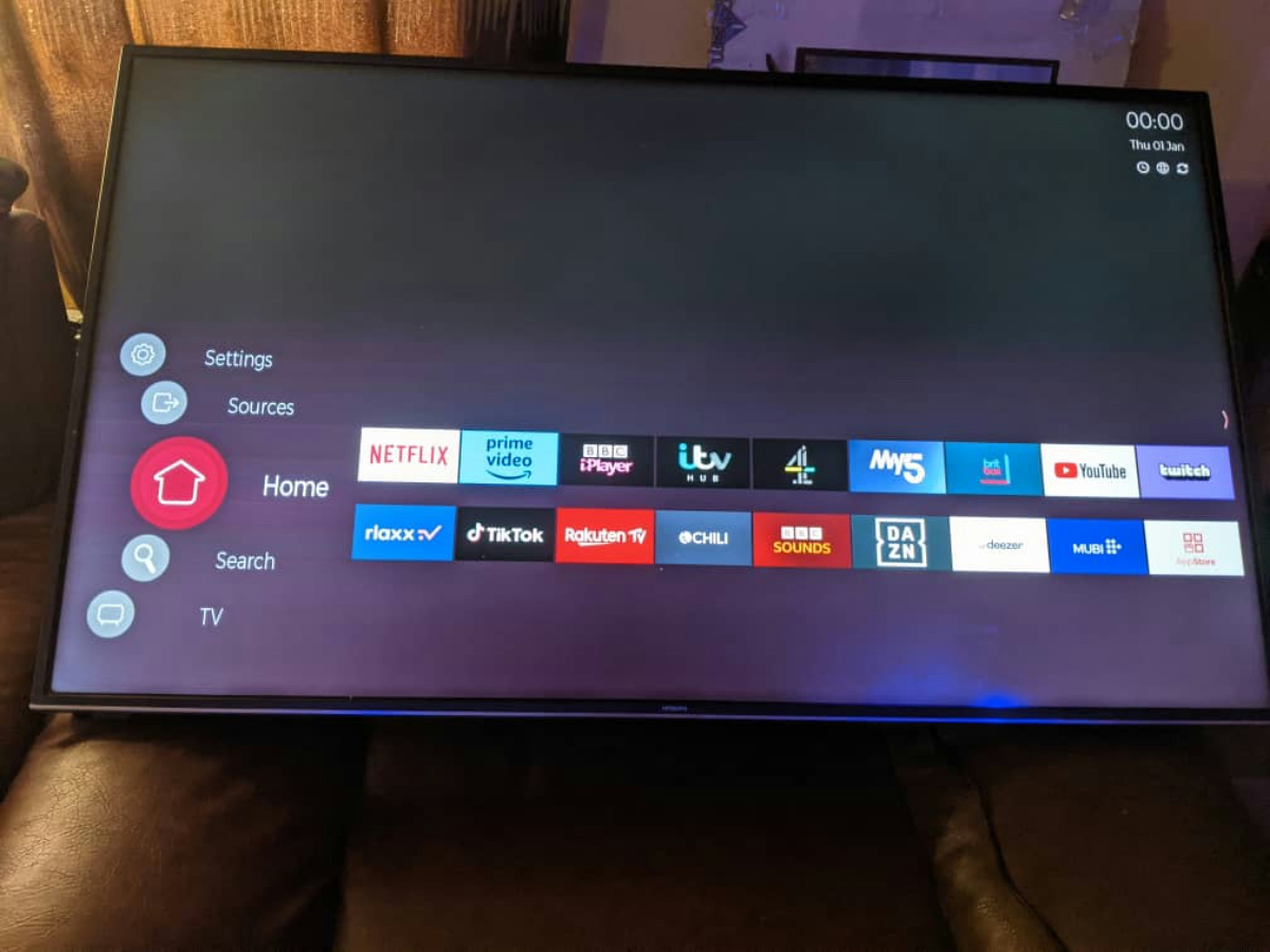
2. Smart TVs: The installation process for Smart TVs, particularly Samsung and LG models, may differ slightly. For Samsung Smart TVs, navigate to the Smart Hub, then search for an IPTV app like Smart IPTV. Download and install the app, then open it and enter your M3U link. In the case of LG TVs, open the LG Content Store, find the IPTV app compatible with your model, and install it. Similarly, input the M3U link once installation is completed. Always check compatibility with your IPTV provider to ensure a smooth experience.
3. MAG Boxes: For MAG Boxes, the installation process is unique. Start by powering on the MAG Box and connecting it to your TV. Access the settings by navigating to the homepage. Select the option for ‘Applications,’ then find the ‘Portal Setup’ section. Enter the portal URL provided by your IPTV service. After saving the settings, restart your MAG Box to access the IPTV content. This method is user-friendly and allows you to effortlessly enjoy various channels offered by your IPTV subscription.
Overall, each device has its unique installation methods, but with clear guidelines, you can easily set up IPTV on your preferred hardware. Following these tailored instructions ensures that users can enjoy seamless streaming regardless of the device used.
Conclusion and Troubleshooting Tips
In conclusion, installing IPTV on the Amazon Firestick is a straightforward process that enhances your streaming capabilities significantly. By following the outlined step-by-step approach, users can access a wide range of television channels, films, and other content seamlessly. This installation not only diversifies the viewing portfolio but also provides flexibility in how and when users consume media. As we have discussed, ensuring that your Firestick is up to date and that you have a reliable internet connection is critical for optimized performance.
However, users may encounter some common issues during the installation and usage of IPTV services. For instance, if the IPTV app fails to load or freezes, a simple restart of the Firestick may resolve the problem. Additionally, checking the internet connection is crucial, as slow or inconsistent connectivity can impede streaming quality. Another issue users might experience is difficulties in accessing premium channels due to geographical restrictions. Utilizing a VPN can be an effective solution, allowing users to bypass these limitations and access the full range of IPTV services.
Furthermore, if the IPTV service consistently buffers or experiences drops in quality, users should consider uninstalling and reinstalling the app to ensure there are no corrupted files. Another helpful tip is to clear the cache of the app regularly, as this can often improve performance by freeing up space and ensuring that the app runs smoothly.
With the right approach and maintenance of the Firestick and IPTV services, users can enjoy a superior viewing experience. Exploring these alternatives can significantly enhance one’s entertainment palette, encouraging continual use of IPTV as a preferred medium for television and streaming consumption.
